
Testing Your Integration
Send custom test leads to verify your integration configuration before going live
Test Before Going Live
Every integration endpoint includes a test function that sends a test lead with custom field values. Use it to verify connectivity, field mappings, and data formatting before receiving real leads.
Overview
The test lead feature is available for all integration types — Email, Webhook, and HubSpot. It sends a fully customizable test lead through the same delivery pipeline as real leads, so you can confirm everything works end-to-end.
Accessing the Test Form
From any integration's details page, click the "Send test" button to open the test form.
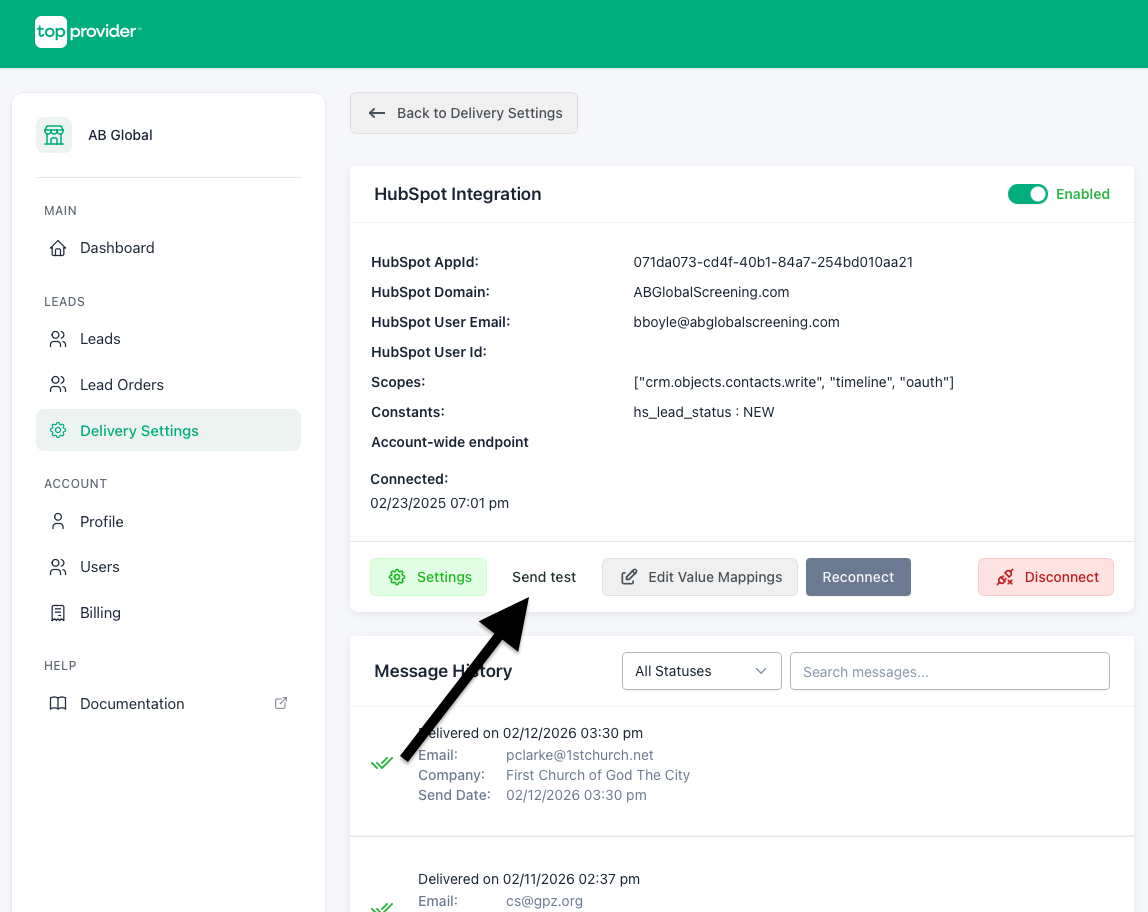 The Send test button on an integration details page
Configuring Test Values
The test form displays all mappable fields with type-safe inputs. Every field is pre-populated with default sample values that you can override with your own data.
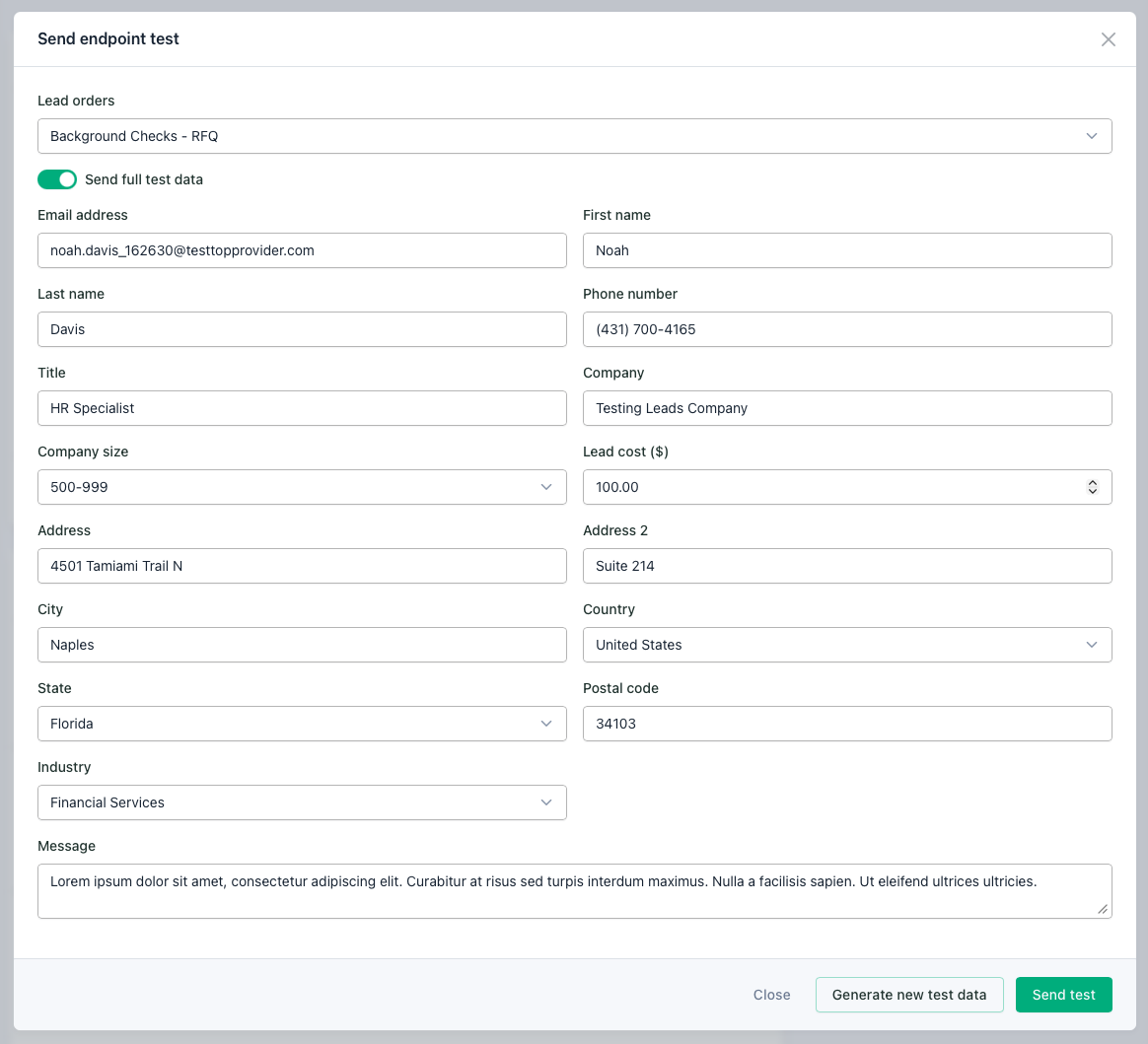 The test form showing custom value inputs
Lead Order Selection
At the top of the form, a Lead orders dropdown lets you select which lead order context to use for the test. This determines the lead order metadata included in the test payload.
Send Full Test Data
The "Send full test data" toggle controls whether the test includes all available fields or only the fields configured in your field mappings. Enable this to verify that your endpoint handles the complete data set correctly.
Field Inputs
Input types vary by field to ensure valid test data:
| Field Type | Input Behavior |
|---|---|
| Name, company, title | Free text |
| Email address | Email-validated input |
| Phone number | Phone number formatting |
| Lead cost ($) | Numeric input (whole dollars) |
| State | Dropdown selector |
| Country | Dropdown selector |
| Industry | Dropdown selector |
| Company size | Dropdown selector with standard ranges |
| Message / notes | Free-text area |
Generating New Test Data
Click "Generate new test data" to populate all fields with fresh randomized sample values. This is useful for running multiple tests with different data sets without manually editing each field.
Sending a Test
After configuring your test values, click "Send test" to deliver the test lead to the configured endpoint. The system provides immediate feedback indicating whether the delivery succeeded or failed.
Verifying Results
Check Notification History
Open "Notification History" in the tab navigation on the integration details page to review:
- Delivery timestamp
- Status (Success / Failure)
- HTTP response code (for webhooks)
- Error messages (if any)
- The exact payload that was sent
Check Your Destination System
Log in to your external system (CRM, email inbox, webhook endpoint, etc.) and verify that the test data arrived with the expected values and formatting.
Best Practices
- Test after any configuration change — field mappings, output format, headers, or constants
- Use realistic values to verify end-to-end data flow through your system
- Use "Generate new test data" to quickly run multiple tests with varied data
- Check Notification History for detailed error messages if a test fails
- Compare the sent payload in Notification History against what your destination system received to identify any transformation issues