
Webhook Integration
Integrate Top Provider leads directly into your systems using real-time webhook notifications
Why Choose Webhook Integration?
Ideal for technical teams who want complete control over lead data and custom integrations with their existing systems or proprietary applications.
Webhook Integration Overview
The Top Provider Webhook Integration enables real-time lead delivery directly to your systems through secure HTTP notifications. This developer-focused integration offers:
- Instant Data Delivery: Receive leads the moment they're assigned
- Flexible Implementation: Works with any system that can receive HTTP requests
- Maximum Control: Process leads according to your specific business rules
- Seamless CRM Integration: Connect to any CRM or internal system
Prerequisites
Before setting up a webhook integration, you will need:
- An external system capable of receiving webhook HTTP requests
- A publicly accessible URL endpoint to receive the data
- Access to the Seller Portal with appropriate permissions to manage integrations
- Knowledge of which lead fields you want to include in your webhook payload
- Understanding of your target system's data format requirements (JSON, XML, etc.)
Quick Setup Guide
Setting up webhook integration takes just a few steps:
Prepare Your Endpoint
Create an HTTP endpoint on your server that can:
- Accept POST requests
- Process JSON payloads
- Return appropriate HTTP status codes (200/201/202 for success)
Access Notifications & Integrations
Sign in to the Seller Portal and navigate to Notifications & Integrations in the left sidebar.
Alternatively, you can navigate directly to: /delivery
 Navigating to Notifications & Integrations
Create Webhook Endpoint
On the Notifications & Integrations page, locate and click the "+ Add a webhook" button. This will open a modal dialog to configure your webhook.
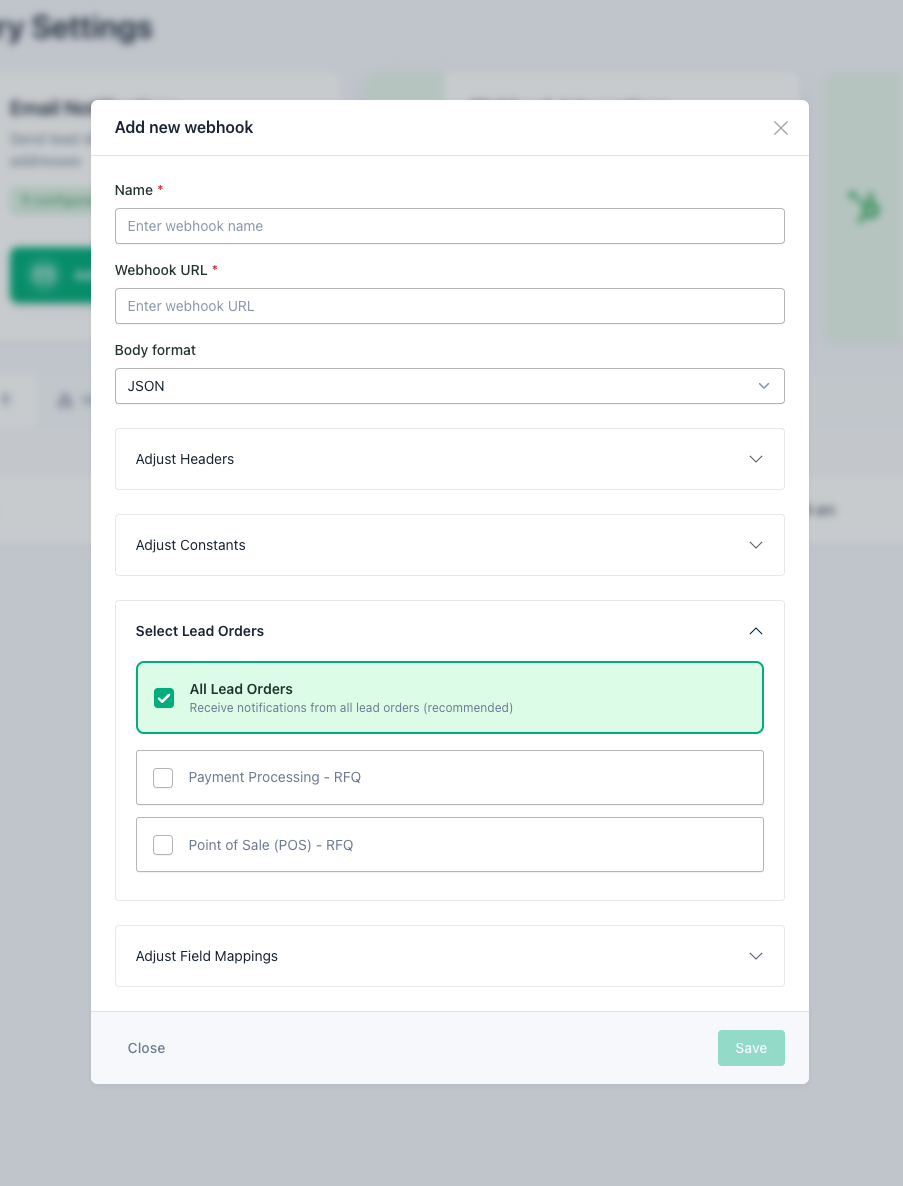 Create Webhook Endpoint
Configure Your Webhook
Enter the following information:
- Name: A descriptive name for your webhook (e.g., "CRM Integration", "Lead API Endpoint")
- Webhook URL: The full URL of your endpoint (must be publicly accessible)
- Data Format: Choose from JSON (recommended), XML, Form, or HubSpot Forms API
- HTTP Headers (Optional): Add authentication or custom headers
- Constants (Optional): Add key-value pairs to include with every lead
Lead Order Selection (Optional)
- Click "Attached Lead Orders" to expand the section
- Select specific lead orders to associate with this webhook
- The webhook will receive leads from all lead orders by default
Complete Setup
After entering all required information, click "Save" to create your webhook endpoint.
Field Mappings
Configure which Top Provider lead fields map to specific fields in your system:
Access Field Mappings
Once the webhook is created, click on "Details" to access the webhook details page, then click the "Settings" button. In the Settings modal, click "Adjust Field Mappings" to expand the section.
Configure Standard Mappings
For each field, enter the corresponding field name for your external system.
Add Additional Mappings
Under "Available Fields," you can add more field mappings as needed. Click on any field in the "Available Fields" section to add it to your mappings. Use exact field names expected by your external system.
Save Your Mappings
After configuring all your field mappings, click "Save" to apply the changes. The webhook will now use these mappings when sending data.
For a complete list of all available lead fields and detailed specifications, see our Lead Fields Reference.
To include meeting data in webhook payloads, map Requested Meeting Time (ISO 8601 UTC, for processing) and Formatted Requested Meeting Time (a pre-formatted display string in the lead's timezone). See Meeting Requests.
Structured Field Names
When using JSON output format, dot notation in output field names produces nested objects in the payload. This is useful for matching the data structure expected by your receiving system.
For example, using flat field names:
| Top Provider Field | Output Field Name |
|---|---|
| First Name | firstName |
| Last Name | lastName |
| Email Address | email |
Produces a flat JSON payload:
Using dot notation in the output field names:
| Top Provider Field | Output Field Name |
|---|---|
| First Name | contact.firstName |
| Last Name | contact.lastName |
| Email Address | contact.email |
Produces a nested JSON payload:
Multiple levels of nesting are supported (e.g., data.contact.name.first). Structured field names only apply to the JSON output format.
HubSpot Forms API Output
The HubSpot Forms API output format generates payloads compatible with the HubSpot Forms v3 API. Each mapped field is structured as an object with name, value, and objectTypeId properties. The payload also includes a WEBHOOKURL property containing the configured endpoint URL.
Example payload:
The objectTypeId of "0-1" corresponds to HubSpot Contacts. The name values correspond to HubSpot property internal names as configured in your field mappings.
This format is an alternative to the HubSpot OAuth Integration for teams that prefer to submit leads via the HubSpot Forms API.
Lead Updates
When a lead's availability changes on a delivered lead (for example, when they request a meeting after the lead was originally sent, or update a time they'd previously picked), Top Provider re-delivers the lead as a lead update to webhook endpoints that have the meeting time field mapped and are set to receive lead updates. Endpoints missing either piece aren't notified. The payload contains the full current lead data with the meeting field populated.
Lead update payloads include a messageType field so the receiving system can distinguish them from initial deliveries:
The requestedMeetingTime field is ISO 8601 in UTC for processing. The formattedRequestedMeetingTime field is a pre-formatted display string in the lead's local timezone.
Initial lead deliveries carry "messageType": "new_lead".
Endpoint Type Setting
Each webhook endpoint has a type setting in its advanced settings that controls which deliveries it receives:
| Type | Behavior |
|---|---|
| New leads only (default) | The endpoint receives only initial lead deliveries. |
| Lead updates only | The endpoint receives only lead update messages. Use this to route updates to a different URL than new leads. |
| New leads and lead updates | The endpoint receives both. Suitable when the receiving system can upsert on a unique lead identifier. |
 Webhook endpoint type setting in advanced settings
Routing Patterns
- Separate URL for updates: create a second webhook endpoint with a different URL and set its type to Lead updates only.
- Single endpoint for both: set the endpoint type to New leads and lead updates and branch on
messageTypeserver-side. - No update deliveries (useful when the receiving system can't handle re-deliveries): leave the endpoint at New leads only.
See Meeting Requests for the full cross-channel behavior.
Testing Your Configuration
Verify your webhook is working correctly:
Access Endpoint Details
Go to your created webhook and click "Details" to access the webhook details page
Test the Endpoint
Locate the "Send test" button and click it to send a test lead to your webhook URL. You'll receive feedback on whether the test was successful.
View Notification History
Click on "Notification History" in the tab navigation to review delivery details:
- Timestamps of delivery attempts
- Status (Success/Failure)
- HTTP response codes
- Error messages (if any)
Check Your System
Log in to your external system and verify that the test data was received properly. Confirm that all mapped fields contain the expected data.
Test leads support custom field values so you can verify end-to-end data flow with realistic data. For details on configuring custom test values, see Testing Your Integration.
Common Issues & Solutions
| Issue | Solution |
|---|---|
| Connection issues | Ensure your webhook URL is publicly accessible, verify there are no firewalls blocking incoming connections |
| Authentication errors | Verify that authentication tokens or API keys are correctly formatted in your headers |
| Field mapping errors | Ensure field names exactly match what your external system expects, check for typos |
| Timeouts | Optimize your endpoint to respond quickly, implement asynchronous processing |
| HTTP error codes | Check error messages in the notification history for specific guidance |
Need help? Contact our support team at [email protected] if you need assistance.