
Calendly
Connect your Calendly account so buyers can pick a real opening and book straight onto your calendar.
If your team schedules meetings with Calendly, you can connect it to Top Provider. Buyers then see your real openings and book straight onto your calendar. You sign in to Calendly once. No administrator is needed.
How It Works
You pick one Calendly event type, and we read its live availability. Buyers see the same openings that your own Calendly page shows. When a buyer picks a time, we book it into that event type.
The booking behaves like any other Calendly booking. Calendly sends the confirmation email to you and to the buyer, and the meeting uses the location on your event type, such as a Zoom or Teams link. If the event type is a phone call that you make, we give Calendly the buyer's phone number. If the buyer cancels or reschedules through Top Provider, we update the booking in Calendly. If you or the buyer cancel or move the meeting in Calendly, we record that too.
Availability follows the rules that you already set in Calendly: schedule, duration, buffers, minimum notice, and date range. We read those settings and never change them.
While a Calendly meeting covers a lead order, buyers always book through it. If Calendly cannot be reached for a moment, buyers see no openings for that day. If a booking cannot be created, the buyer's request is saved as a standard meeting request, and our team coordinates the time. Your booking link takes over only when no connected calendar covers the lead order, for example after you disconnect Calendly.
What You Need
- A paid Calendly plan. Calendly only lets other apps book meetings on its paid plans. A free account can sign in, but Calendly refuses the booking. We test this when you connect and tell you if the plan is too low. See Calendly's pricing page.
- One active event type. One-on-one, collective, and round robin event types all work. A group event type cannot be connected, because it books many people into one session. Make sure that the event type is switched on and has a schedule behind it. An event type that is turned off never shows an opening.
- The Calendly login that owns the event type. If your team shares one Calendly organization, sign in as the person whose calendar buyers book onto.
Connect in the Seller Portal
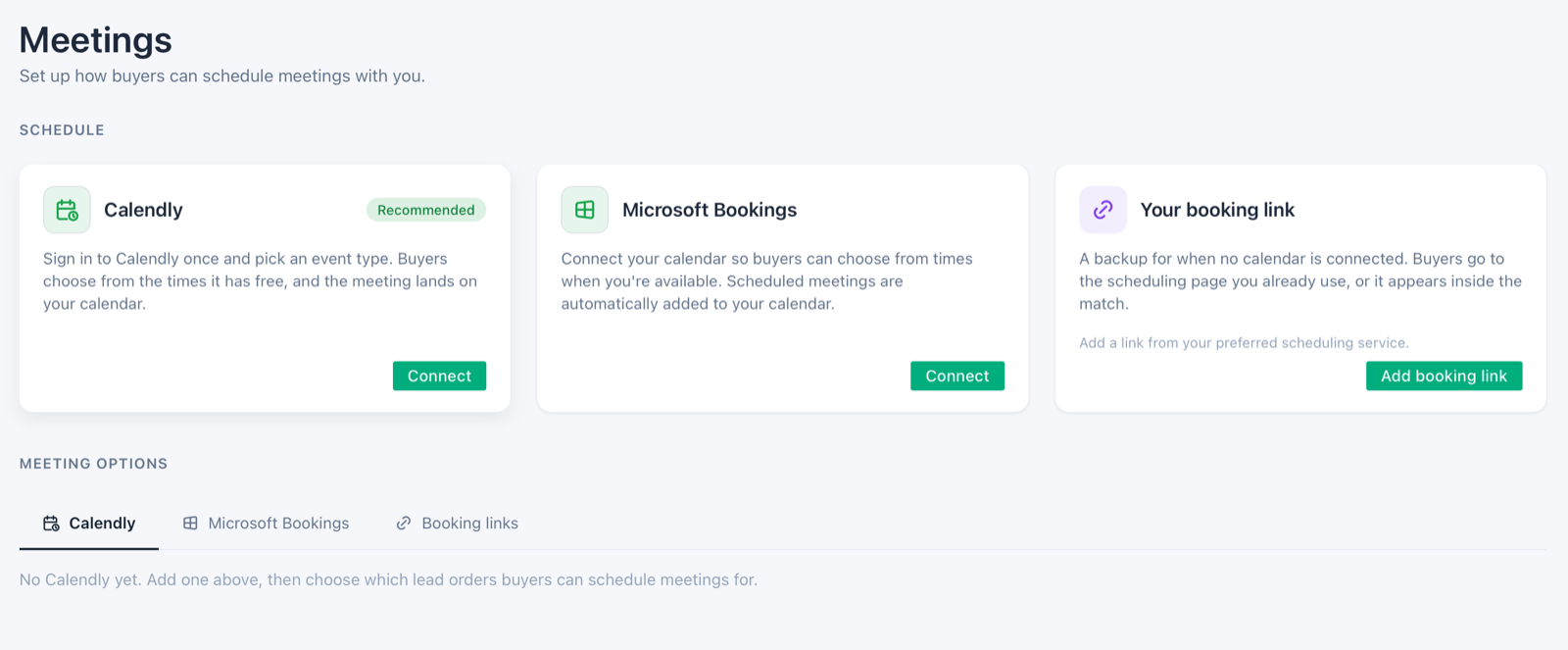 The Meetings page before connecting. Select Connect on the Calendly card.
Sign In to Calendly
Open Meetings in the Seller Portal. On the Calendly card, select Connect, then Sign in with Calendly. Sign in with the Calendly account that owns the event type.
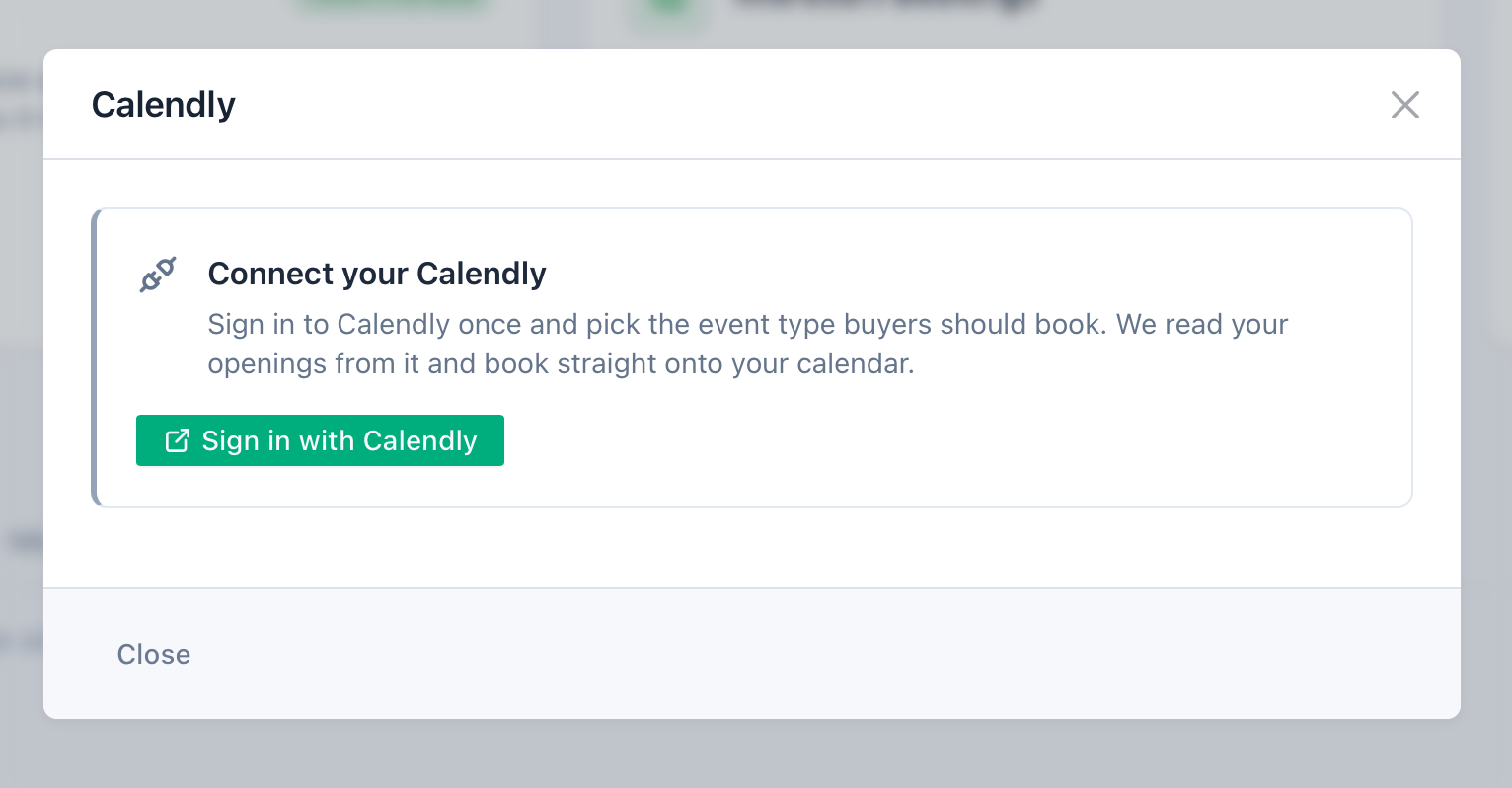 Selecting Connect opens this window. Sign in with Calendly takes you to Calendly's own page.
Approve the Connection
Calendly shows what access Top Provider receives. Select Approve. Calendly then sends you back to the Seller Portal. The connect link is valid for one hour. If it expires, start again from the Meetings page.
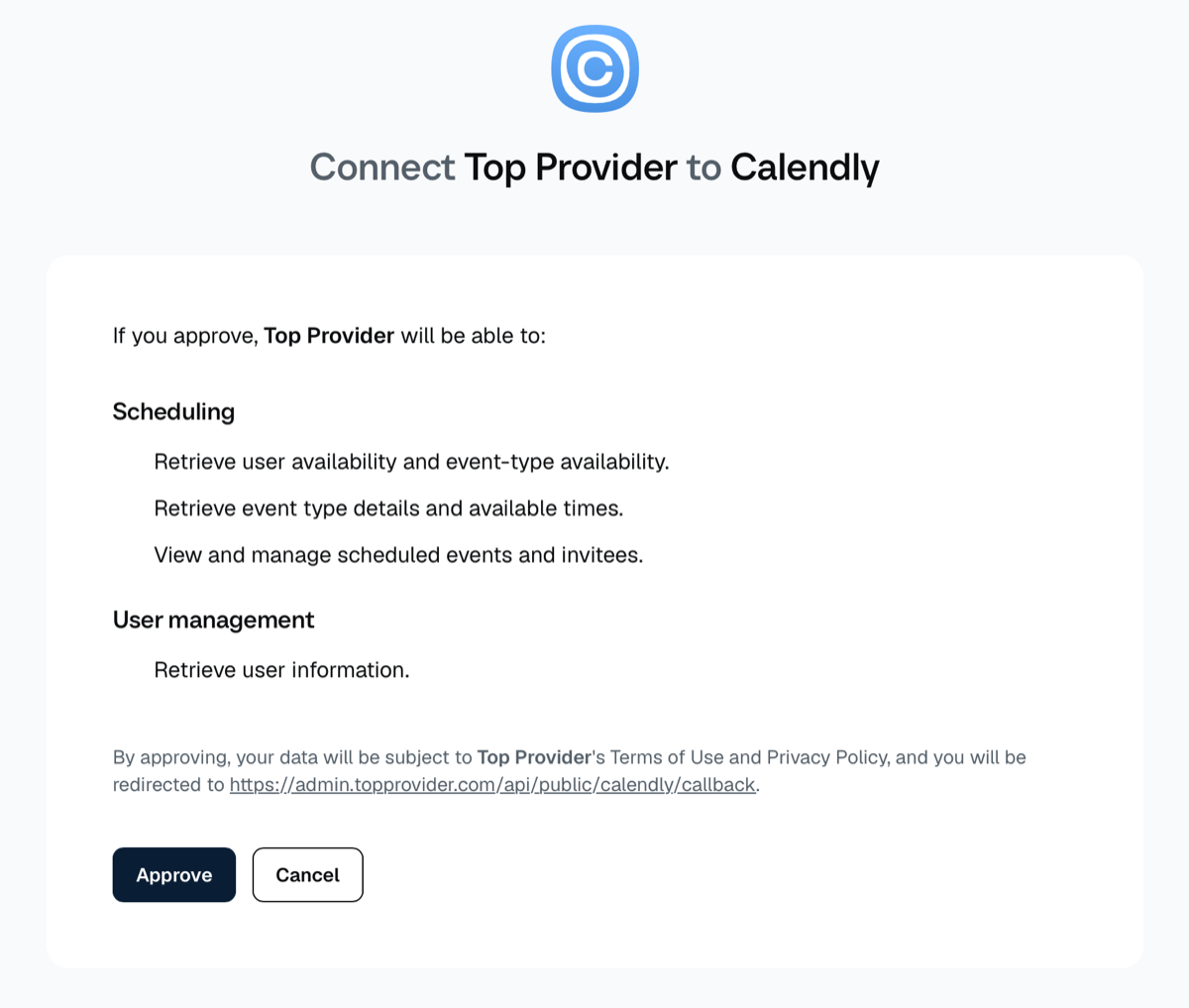 Calendly's approval screen lists the access that Top Provider receives.
Add the Meeting
When the connection works, the Add meeting window opens by itself. Choose the Event title that buyers book. A group event type, or an event type that is turned off, is listed but cannot be picked. The timezone comes from your Calendly profile.
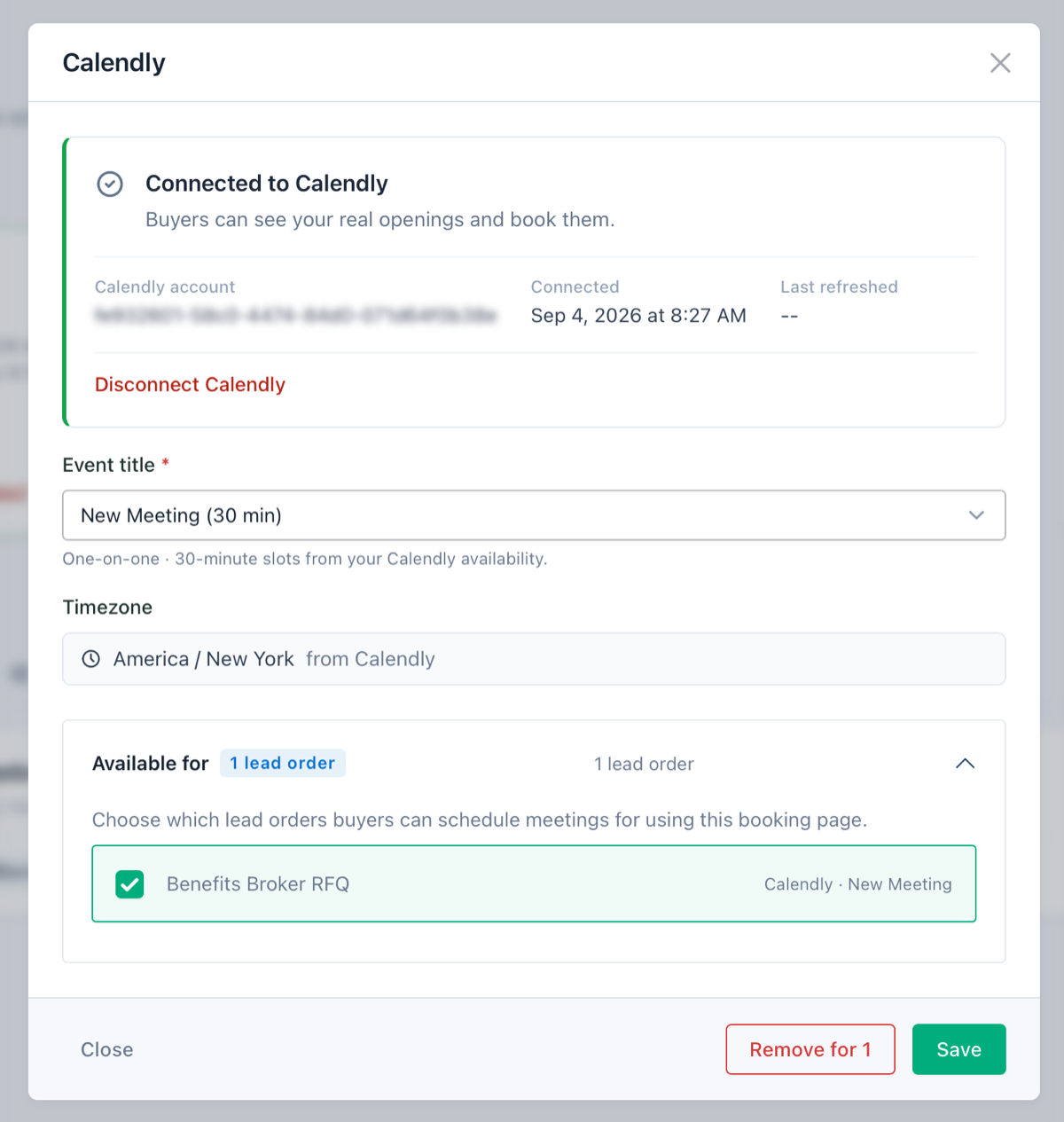 The connection details, the event title picker with the timezone from Calendly, then the lead orders it covers.
Choose Which Lead Orders It Covers
Select the lead orders that this calendar covers. Each lead order books through one connected calendar, so a lead order that is already in a Microsoft Bookings meeting, or in another Calendly meeting, is greyed out until you remove it there. A booking link does not block it. Select Save.
If the Connection Is Not Successful
When the connection works, the Add meeting window opens and there is nothing more to do. When it does not, the Seller Portal names one of these results:
| Result | What happened | What to do |
|---|---|---|
| Connected, with nothing to book | The connection works, but your Calendly holds no active event type. | Create an event type in Calendly and turn it on. Then open Add meeting on the Meetings page. |
| Your Calendly plan does not support integrations | You signed in, but Calendly does not let other apps book on this plan. The connection was not kept. | Upgrade the Calendly plan. Then connect again. |
| This link has expired | The connect link was more than an hour old. Nothing changed. | Start again from the Meetings page. |
| Connection was not completed | You closed or declined the Calendly prompt. Nothing changed. | Select Connect again and approve the connection. |
| Already connected elsewhere | That Calendly account belongs to another Top Provider account, so it was refused. | Contact Top Provider to release it, or connect a different Calendly account. |
| Something went wrong | The connection did not complete, either at Calendly or on our side. Nothing changed. | Try again. If it happens twice, contact Top Provider. |
Troubleshooting
Start With a Test Booking
Every meeting has a Test button. It reads your calendar and books exactly the way a buyer does, so it shows you what buyers see: the openings, the slot length, and the timezone. The test creates a real booking, so delete it in Calendly afterwards. If the test cannot read your calendar at all, a buyer hits the same thing. Recheck the connection on the Meetings page and the event type that you picked.
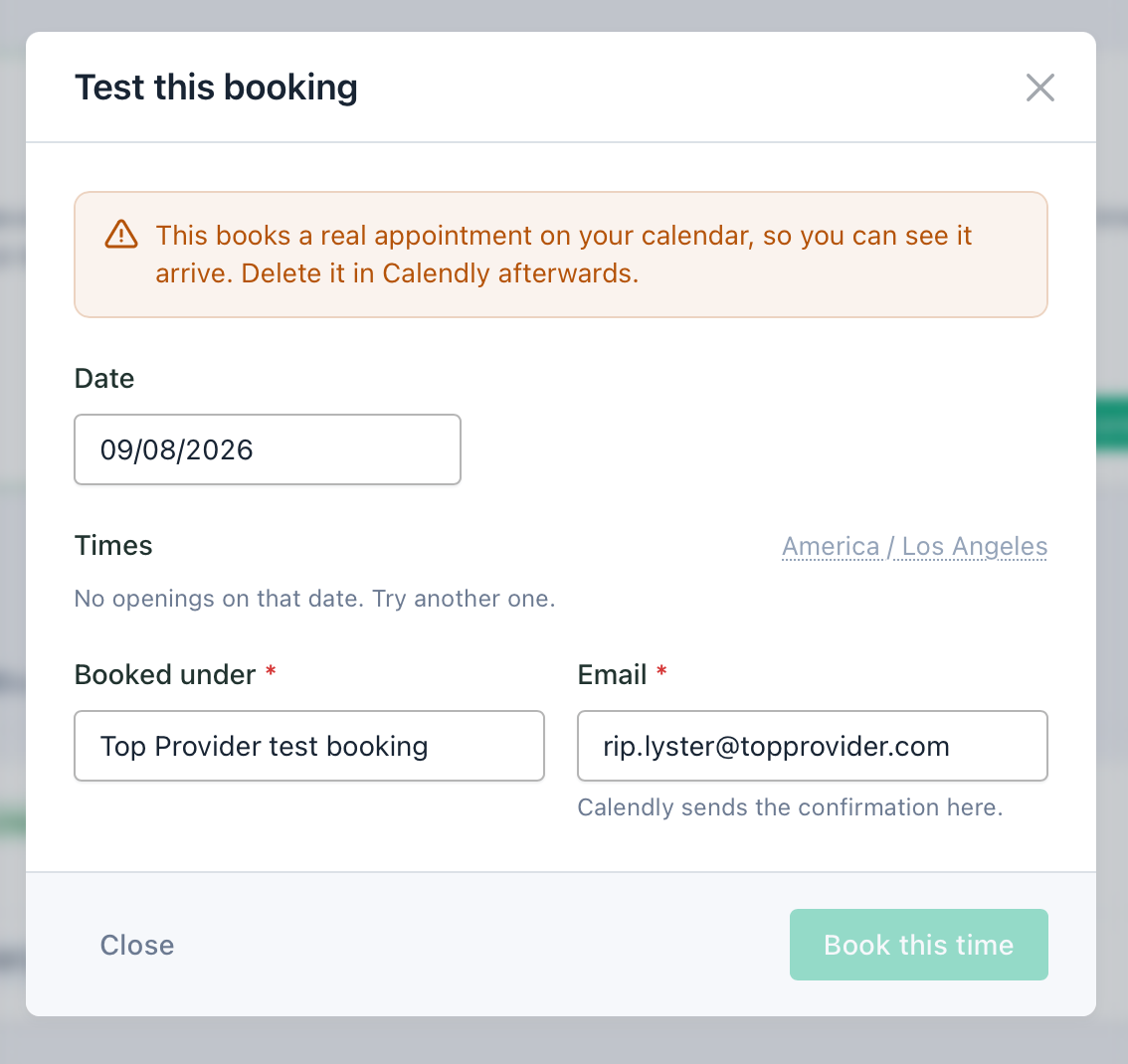 The test booking shows the same openings a buyer sees. Calendly sends the confirmation to the email you enter.
Wrong or Missing Times
The cause is nearly always a Calendly setting:
| What buyers see | The setting behind it |
|---|---|
| No times at all, ever | The event type is turned off, or its schedule has no hours. |
| Nothing today or tomorrow | Minimum scheduling notice on the event type. |
| Nothing beyond a few weeks | Date range on the event type. |
| Times only on the hour, or at odd minutes | Start time increments on the event type. |
| Meetings are the wrong length | Duration on the event type. |
| Fewer openings than the calendar suggests | Buffers, a limit on events per day, or a busy slot on a calendar that Calendly checks for conflicts. |
| Openings outside working hours | The schedule on the event type. |
| Times are an hour or more off | The timezone on your Calendly profile against the timezone shown on the meeting in the Seller Portal. |
Each of these is changed in Calendly and takes effect on our side immediately. After you change one, run another test booking to confirm the fix.
The Card Says Access Was Removed
If Top Provider is removed under Integrations & apps in Calendly, buyers see no openings until you reconnect. Select Reconnect Calendly on the Meetings page and sign in again. Your saved event type and lead orders stay in place.
Disconnecting
Open Meetings in the Seller Portal and select Disconnect on the Calendly card. This takes effect straight away:
- Buyers stop seeing openings from your Calendly.
- Lead orders covered by this connection fall back to their booking links.
- The meetings that you set up with Calendly are removed. You choose the event type again after you reconnect.
- Top Provider's access to your Calendly is withdrawn. Nothing already on your Calendly calendar changes.
FAQ
Need help? Contact our support team at [email protected] if you need assistance.